

Walking into a Magento admin panel only to find a broken checkout or a blank white screen is a nightmare every store owner faces. These glitches often stem from hidden battles under the hood where different pieces of code fight for control. When your digital storefront feels like it is working against you, extension conflicts are usually the culprit.
This guide strips away the technical mystery, offering a clear path to identifying and fixing these clashes so your store remains fast, functional, and reliable.
Magento is celebrated for its modularity. However, this same flexibility allows multiple developers to write code for the same store, often without knowing what the other has done. When two Magento 2 modules try to change the same core behavior simultaneously, the system becomes unstable.
These conflicts occur because Magento’s Object Manager must decide which piece of code takes precedence; when two instructions are diametrically opposed, the application state can become corrupted.
These conflicts are the primary reason for site crashes, slow performance, and broken user journeys that cost merchants significant revenue.
In most cases, conflicts do not happen at random. They typically surface during several high-risk scenarios:
Before you dive into the technical fixes, it is always wise to consult a Magento extension checklist before buying to ensure the software you are adding is built to high standards.
The first step in resolution is recognition. You do not always need to look at code to know a conflict is present; the frontend usually tells the story.
Magento’s architecture relies on a “merge” system. When the application runs, it collects configuration files from every installed module and merges them into one large instruction set.
If Module A says “Redirect to Page X” and Module B says “Redirect to Page Y” for the same action, Magento has to choose one, or it simply breaks. Because many developers target the same high-value areas—like the checkout or the product page—the likelihood of overlapping logic is extremely high.
In Magento, a “preference” is a way to tell the system: “Whenever you want to use the core Class A, use my Custom Class B instead.”
Problems arise when two different modules both set a preference for the same core class. Magento can only honor one preference at a time, meaning the functionality of the “losing” module will disappear entirely.
How to resolve it
Plugins are generally safer than preferences, but they are not bulletproof. If two “around” plugins are both trying to manage the same method, one might fail to call the proceed() function, which stops the execution of all subsequent plugins and the original method itself.
How to resolve it
Magento uses an event-driven architecture. When an event (like sales_order_place_after) fires, multiple “observers” may catch it. If Observer A modifies an object and Observer B expects the original state of that object, the data becomes corrupted.
How to resolve it
The frontend is built using XML files that define where blocks and buttons go. If two extensions try to “remove” the same block or move it to different containers, the layout engine may fail to render the page, leading to missing elements or broken styling.
How to resolve it
Magento uses RequireJS to manage JavaScript dependencies. A conflict occurs when two extensions try to map different versions of the same library (like a specific jQuery slider) to the same alias. This results in “undefined” errors in the browser console.
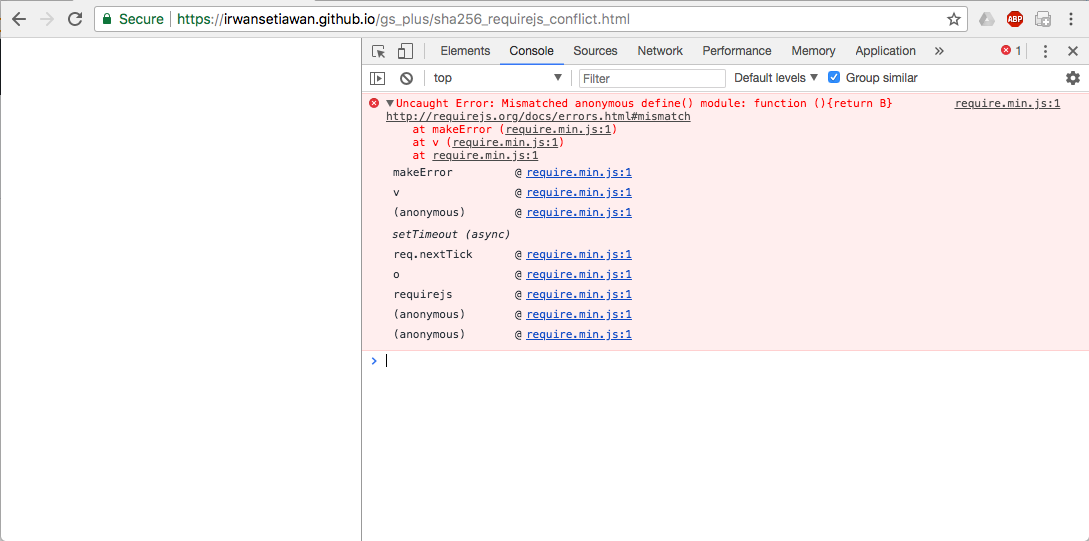
How to resolve it
Sometimes the conflict is not between two extensions, but between an extension and the environment. This happens when a module requires a version of a PHP library that is incompatible with what Magento or another module requires.
How to resolve it
Never troubleshoot a conflict on a live site. Create a “staging” or “development” mirror of your store. This allows you to run aggressive tests, like mass-disabling modules, without scaring away customers or losing real orders.
If you cannot reproduce the bug on staging, the conflict might be related to server configuration or cached data rather than the extensions themselves.
Understanding How to test Magento extensions safely is a prerequisite for any developer or site administrator looking to maintain a healthy store environment.
Magento’s “Production Mode” hides errors for security. Switch to “Developer Mode” using the command bin/magento deploy:mode:set developer. This will print errors directly to the screen. Simultaneously, monitor your logs located in var/log/. The exception.log and system.log are your best friends; they often name the exact file and line number where the conflict is occurring.
The fastest way to find a culprit is the “Binary Search” method:
The command line is a powerful ally. Use bin/magento module:status to see a list of all enabled and disabled modules. If you suspect a dependency issue, composer suggests or composer whypackage/name can help you understand why certain libraries are being pulled into your project.
The best way to resolve a conflict is to never have one. Before adding anything to your site, perform a thorough evaluation. Look for vendors with high reputations and check if they provide “Compatibility Patches” for other popular modules.
Always refer back to your Magento extension checklist before buying to ensure the module follows Magento’s technical guidelines, such as using Service Contracts and avoiding core overrides.
Adopt a strict deployment pipeline. Every change should go from Local Development -> Staging -> Production. Use version control (like Git) so you can easily “roll back” if a new extension causes a conflict. Automated testing tools can also be configured to check your checkout flow every time a new module is added.
If you are writing your own code, strive to be “unobtrusive.”
Resolving Magento conflicts is less about magic and more about structure. By understanding how the platform merges code and where the common friction points lie, you can transform a chaotic store into a well-oiled machine.
When you approach troubleshooting with a diagnostic mindset rather than one of frustration, you build a more resilient business. Stay disciplined with your testing, choose your modules wisely, and your Magento store will provide a seamless experience for every visitor who clicks through your pages.
